Your music,on your own machine.
LunoRX plays YouTube Music on Mac, Windows and Linux. Lyrics follow the singing, and your playlists stay on your own computer.
- Free to use
- Open source MIT
- Mac · Windows · Linux
Test version 1.0.0-rc. Not connected to Google, YouTube or Spotify.
Your music,on your own machine.
LunoRX plays YouTube Music on Mac, Windows and Linux. Lyrics follow the singing, and your playlists stay on your own computer.
- Free to use
- Open source MIT
- Mac · Windows · Linux
Test version 1.0.0-rc. Not connected to Google, YouTube or Spotify.
Plays audio with its own player
The app has a built-in audio player instead of opening a web page. You can jump to any point in a song, change the volume and quality, and pick up where you left off.
The next song starts on its own
When a song ends, the app plays a similar one. You can see the upcoming list and pick from it, and the back button goes back through that list.
Lyrics from 8 sources
Choose which sources to try first. Some songs highlight each word as it is sung, and you can write your own lyrics files with a tool inside the app.
Your data stays on your computer
Playlists, liked songs and listening history are saved on your computer first. You can keep playlists for offline listening, and sync with your own server if you want to.
Easy with a keyboard
Press ⌘K on Mac or Ctrl+K on Windows and Linux to search and run commands right away. You can set your own shortcuts.
Login details are kept safe
Your YouTube login is stored in the password storage that comes with your system (Keychain on Mac, Credential Manager on Windows, GNOME Keyring or KWallet on Linux). It is never written to a file or sent to a server. If your computer has no such storage, login is turned off instead of being stored unsafely.
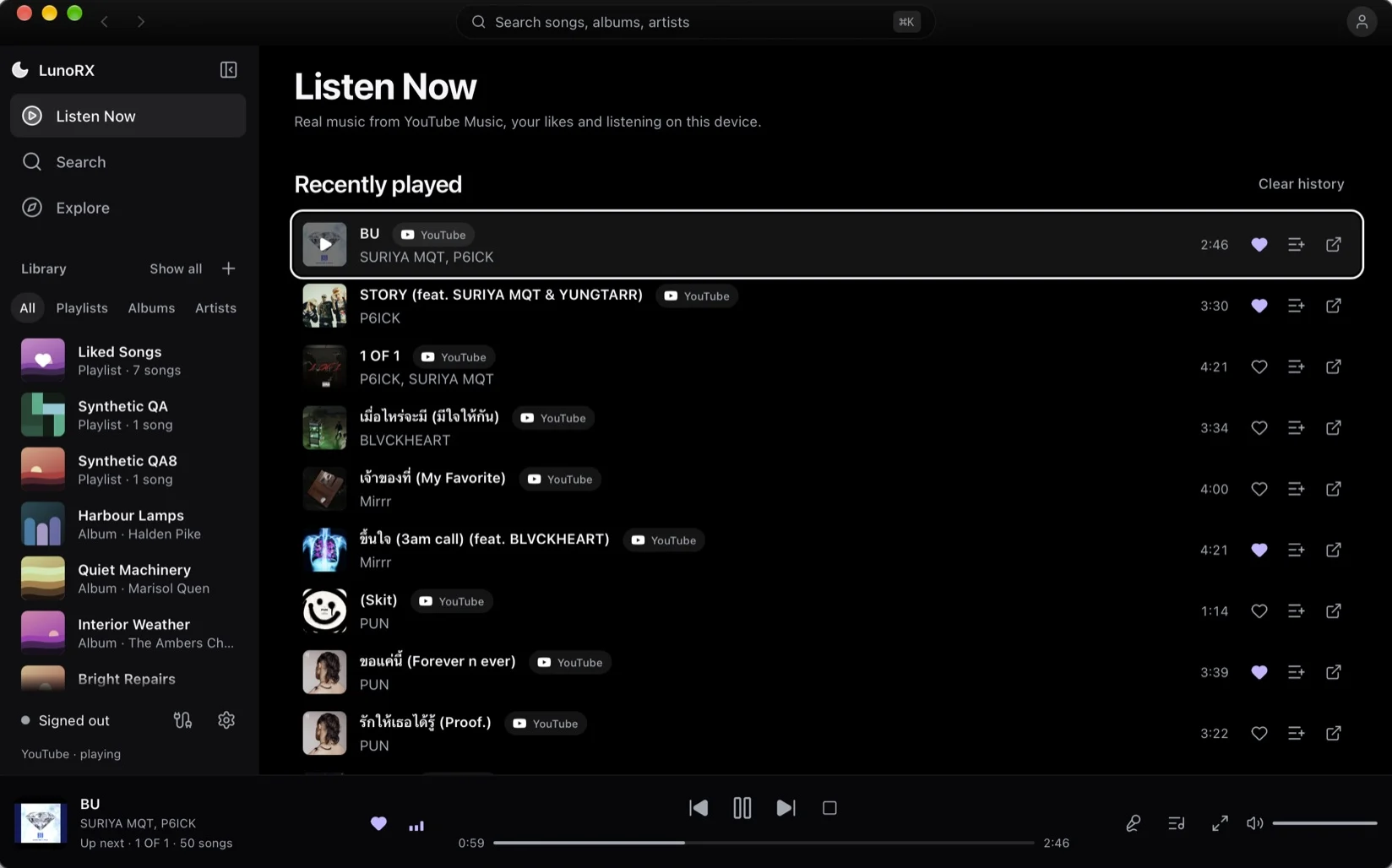
Start at Listen Now
See what you played recently, your playlists on the left, and the playback controls at the bottom, along with what plays next.
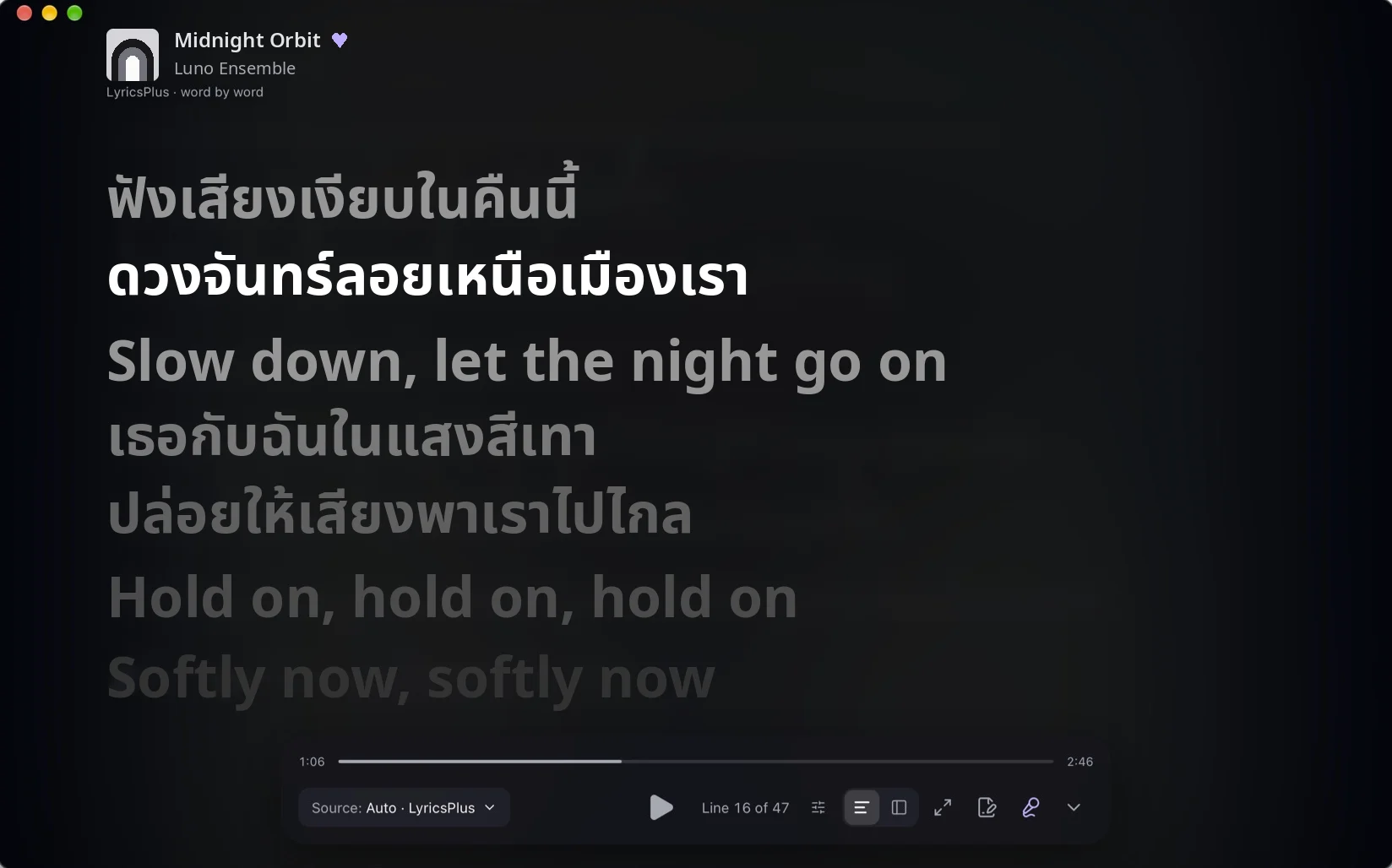
Full-screen lyrics
The line being sung stands out, and on some songs each word lights up as it is sung. Click any line to jump there, and pick which lyrics source to use.
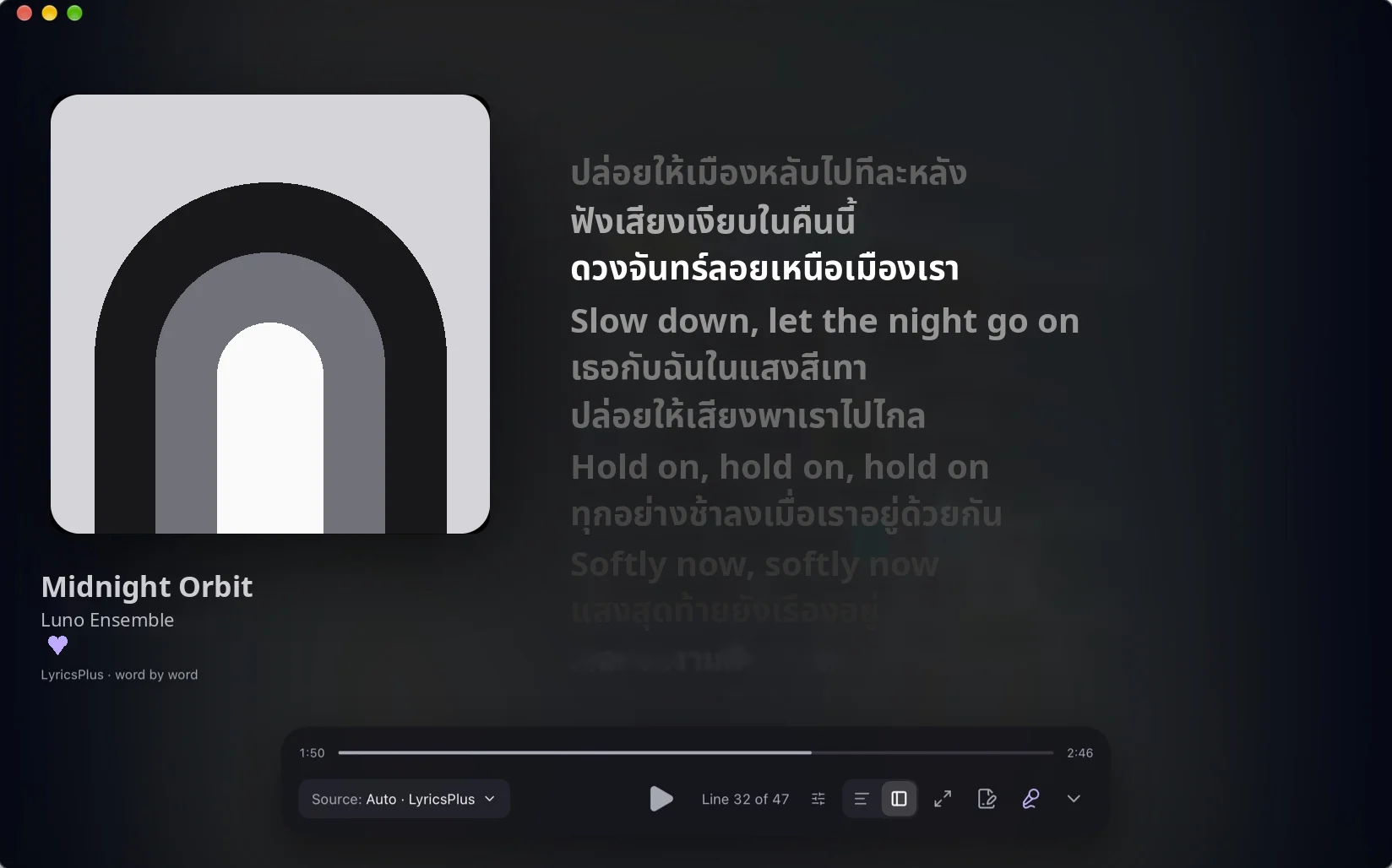
See the cover as well
A split view with the cover and song name on the left and lyrics on the right. If lyrics run early or late, you can shift the timing for each source.
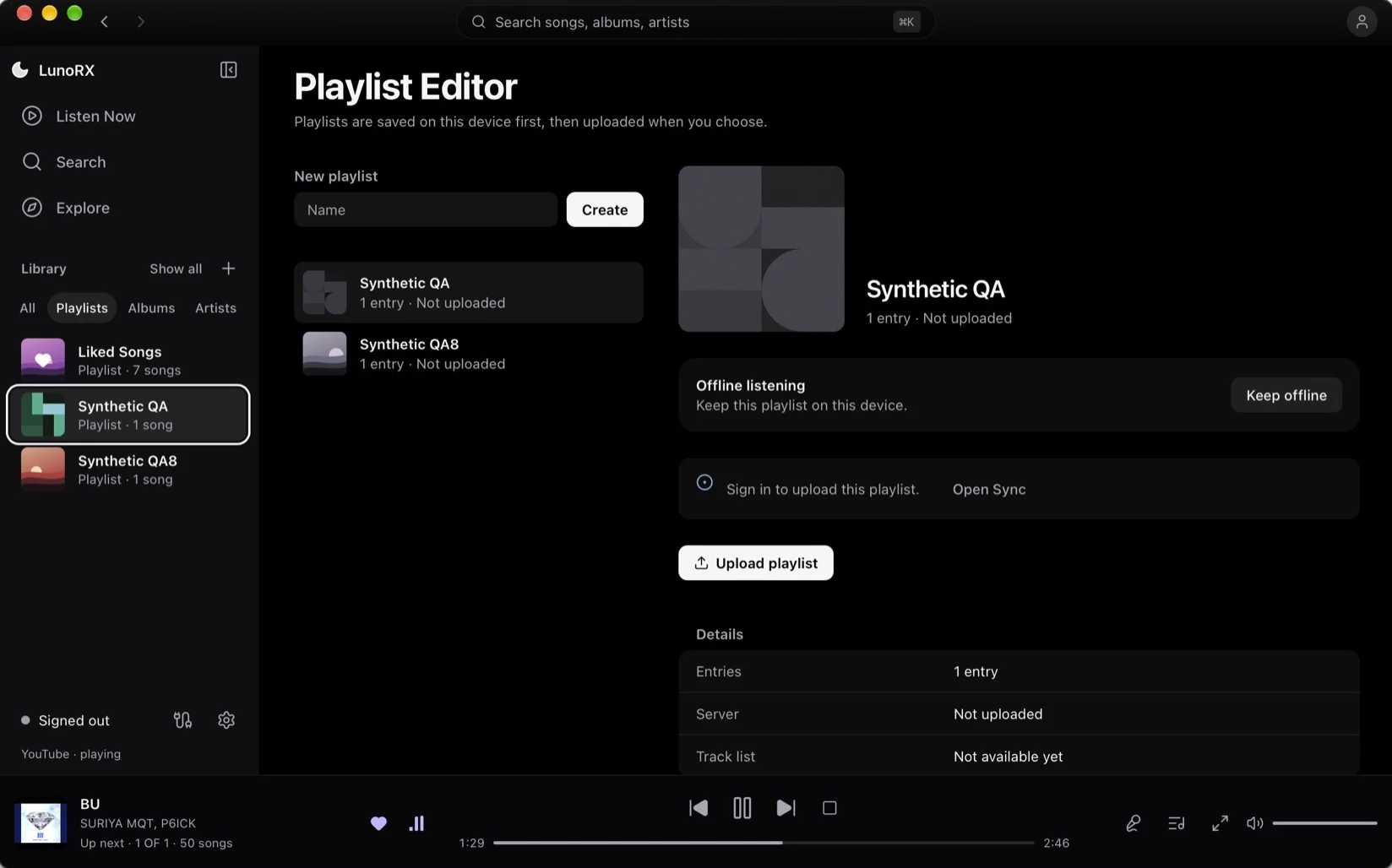
Your playlists
Create and edit them on your computer, keep them for offline listening, and upload them to a server only when you choose to.
What it does
Plays audio with its own player
The app has a built-in audio player instead of opening a web page. You can jump to any point in a song, change the volume and quality, and pick up where you left off.
The next song starts on its own
When a song ends, the app plays a similar one. You can see the upcoming list and pick from it, and the back button goes back through that list.
Lyrics from 8 sources
Choose which sources to try first. Some songs highlight each word as it is sung, and you can write your own lyrics files with a tool inside the app.
Your data stays on your computer
Playlists, liked songs and listening history are saved on your computer first. You can keep playlists for offline listening, and sync with your own server if you want to.
Easy with a keyboard
Press ⌘K on Mac or Ctrl+K on Windows and Linux to search and run commands right away. You can set your own shortcuts.
Login details are kept safe
Your YouTube login is stored in the password storage that comes with your system (Keychain on Mac, Credential Manager on Windows, GNOME Keyring or KWallet on Linux). It is never written to a file or sent to a server. If your computer has no such storage, login is turned off instead of being stored unsafely.
What the app looks like
Real screenshots from macOS, using data from YouTube Music
- 01
Start at Listen Now
See what you played recently, your playlists on the left, and the playback controls at the bottom, along with what plays next.
- 02
Full-screen lyrics
The line being sung stands out, and on some songs each word lights up as it is sung. Click any line to jump there, and pick which lyrics source to use.
- 03
See the cover as well
A split view with the cover and song name on the left and lyrics on the right. If lyrics run early or late, you can shift the timing for each source.
- 04
Your playlists
Create and edit them on your computer, keep them for offline listening, and upload them to a server only when you choose to.
- 0
- lyrics sources you can put in your own order
- 0
- supported systems: Mac, Windows, Linux
- 0
- servers needed to use the app
- MIT
- license. The source code is open to everyone
Install it on your system
Pick your system and follow the steps. The app is still a test version, so every step is written from what we have actually tried.
Works on Macs with Apple silicon or Intel chips
- 1
Download the .dmg file
Go to the Releases page and pick the .dmg that matches your Mac (Apple or Intel).
Go to Releases - 2
Drag the app into Applications
Open the .dmg you downloaded and drag LunoRX into your Applications folder.
- 3
Open the app for the first time
Your Mac will say it cannot verify that LunoRX is free of malware. That is because the app is not yet approved by Apple. It does not mean the app is damaged. Click Done (do not click Move to Trash).
- 4
Allow it to open
Go to System Settings > Privacy & Security, scroll to the Security section and click Open Anyway. Then enter your password or use Touch ID. You only need to do this once. If you do not see the button, try opening the app once more first.
- 5
Another way: one command
If you would rather skip the steps above, open the Terminal app, paste this command, then open the app as usual.
xattr -dr com.apple.quarantine /Applications/LunoRX.app
The audio player is already inside the app. If there is no sound, try running brew install mpv. This installer has not been tested on a fresh Mac yet, so tell us if you run into a problem.
Always check the file before installing
Download only from the project Releases page, then compare the file with SHA256SUMS.txt on the same page.
Things people often ask
Cannot find your answer? Ask on GitHub Issues (please do not post personal information)
Legal information and terms
We summarize the project documents in plain English. For the full text of the MIT license, see the repository on GitHub.
Questions or problems to report: GitHub Issues
Disclaimer and terms of use
This app is not connected to Google, YouTube or Spotify. Also covers trademarks and liability.
Privacy
What the app stores and where, what it sends out, and how login details are kept.
Software license
MIT, and the third-party software the app uses.
Security
How to report a security problem privately.
Website cookies
What this website remembers in your browser.
Want to try it?
Download the latest version from GitHub, or read the source code first. Everything is open to see.